How to Delete Pages from a PDF Without Acrobat (Free) — 2026
Remove one page, several, or every blank page from any PDF — free, on any device, with nothing uploaded. The original stays untouched.
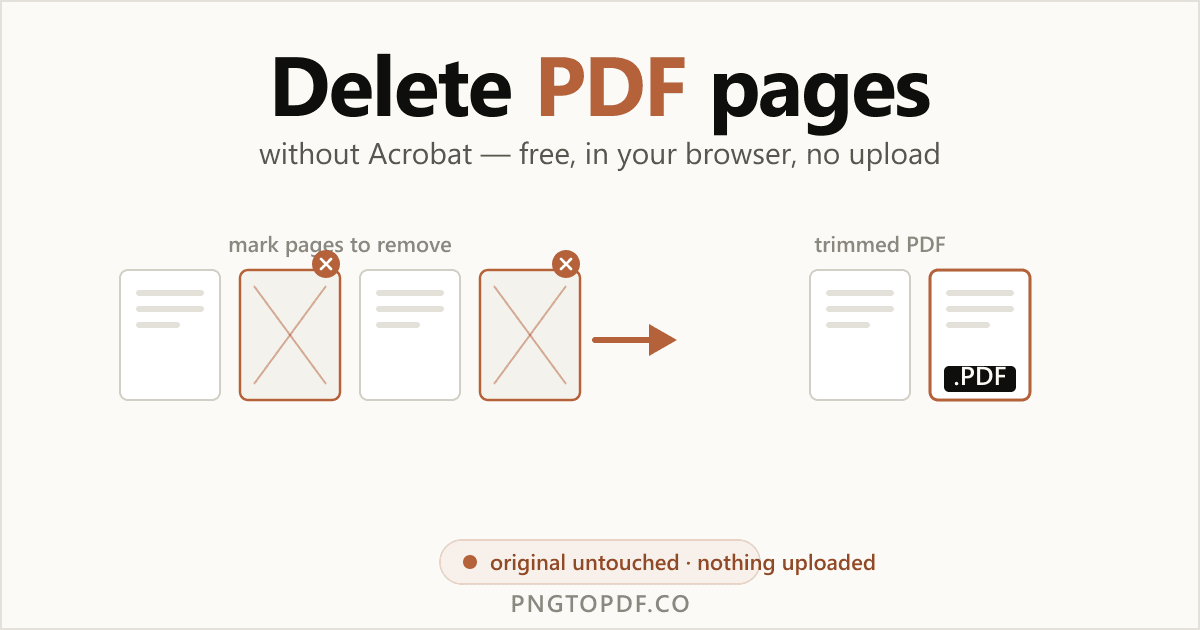
A stray cover sheet, a blank page from a double-sided scan, a page of fine print you don't need to forward — you shouldn't need a paid Acrobat subscription to remove them. Deleting pages simply rebuilds the PDF from only the pages you keep, and your original file is never altered.
This guide covers every method that works in 2026 — the fastest in-browser route (free, with nothing uploaded), the built-in options on Mac and Windows, and how to remove one page, a range, every other page, or all the blank pages at once. You will also get the honest answer to a question every other guide skips: does deleting pages actually make the file smaller?
Why delete pages from a PDF?
Deleting is about keeping the document but dropping the pages you don't want. The common reasons:
- Remove blank pages. Double-sided scans of one-sided documents leave an empty page between every real one.
- Cut a cover or instruction sheet. Drop the fax cover page or the "how to read this" preamble.
- Trim sensitive pages before sharing. Send the report without the page that lists internal pricing.
- Delete duplicates or the last page. Remove a repeated page or a trailing ad/terms page.
Want to keep just a few pages instead of removing many? That is the opposite job — extract the pages you want into a new file.
Delete vs extract vs split (and organize)
Four tools sound similar but do different things. Picking the right one saves time:
- Delete — remove the pages you don't want; keep the rest. Result is a shorter PDF.
- Extract — copy the pages you do want into a new file. See extract pages.
- Split — divide one PDF into several files. See split it into multiple files.
- Organize — reorder, rotate, and delete in one place. See reorder and rotate too.
| Action | Best when | Result |
|---|---|---|
| Delete | You want to drop a few pages | Same PDF, fewer pages |
| Extract | You want to keep a few pages | A new PDF of chosen pages |
| Split | You need separate files | Several PDFs |
| Organize | You want to reorder + rotate + delete | One rearranged PDF |
The easiest way: delete pages online (no upload)
The fastest method needs no software and no account. A client-side deleter does everything inside your browser tab, so your document never leaves your computer. Here is how it works with our free PDF page remover:
- 1Open the deleterGo to pngtopdf.co/delete-pdf-pages. Nothing to install, nothing to sign up for.
- 2Add your PDFDrag the file onto the page, or click to browse. It loads instantly and stays on your device.
- 3Mark the pages to deleteClick the page thumbnails to mark them, or type a range like 2,5,9-11. Click a marked page again to undo.
- 4Download the trimmed PDFPress delete and download. The original is untouched — you get a new, shorter copy.
Delete one page, several, or every other page
However many pages you need gone, there's a quick way:
- One page: click its thumbnail (or type a single number).
- Several pages: type a range like
3-7or a list like2,5,9-11— the thumbnails and the range box stay in sync. - Every other page: use odd/even quick-select to drop all the even (or odd) pages at once — perfect for the blank backs of a duplex scan.
How to remove blank pages from a PDF
Blank pages are the most common reason people reach for a deleter. They usually appear when a one-sided document is scanned in double-sided mode, leaving an empty page after every real one. To remove them: open the PDF, scroll the thumbnails, and mark each empty page. If every blank falls on the same side — all even pages, say — odd/even quick-select clears them in a single move.
Delete pages without an online tool (built-in methods)
Prefer to stay offline? Mac has a genuinely good built-in option; Windows takes a workaround.
Mac: Preview
- 1Open the PDF in PreviewDouble-click the file; Preview is the default viewer.
- 2Show the thumbnail sidebarChoose View → Thumbnails (or press Cmd+Option+2).
- 3Select and deleteClick a page (Cmd-click for several), then press the Delete key.
- 4Save a new copyUse File → Export As to save a new file, so your original stays intact.
Windows
Windows has no built-in PDF page deleter. Two workarounds:
- Re-export from the source app. If the PDF came from Word, delete the pages there and export again.
- The browser "print only what you keep" trick. Open the PDF, press Ctrl+P, choose "Microsoft Print to PDF", and in the Pages box enter only the pages you want to keep — for example
1-4,6-10to drop page 5. The catch: you list the pages to keep, not the ones to remove, which gets fiddly for scattered deletions.
Does deleting pages make the PDF smaller?
Often a little, but not always a lot — and this surprises people. Removing a page drops its content, but a PDF shares resources across pages: embedded fonts, repeated logos, and images used in several places stay in the file. So a 50-page document minus 5 pages rarely shrinks to 90% of its size. If your real goal is a smaller file (to email or upload), the right tool is compress it after deleting.
And to be clear: deleting never changes the original file on your disk. You download a new, trimmed copy, so the source document is always there to fall back on.
Is it safe to delete PDF pages online?
It depends entirely on the tool. The pages you delete are often the sensitive ones — internal notes, personal details on a scan — so where the file goes matters. Most online deleters upload your file to a server. A client-side deleter runs entirely in your browser, so the file is never transmitted; nothing to intercept, nothing cached elsewhere. A quick way to tell: a client-side tool works almost instantly with no "uploading…" bar, and it keeps working with your connection switched off.
| Method | File uploaded? | Works offline? | Original changed? |
|---|---|---|---|
| In-browser, local (our tool) | No — stays on device | Yes | No |
| Cloud deleter | Yes | No | No (new file) |
| Mac Preview | No | Yes | Yes if you Save (use Export As) |
Frequently asked questions
How do I delete pages from a PDF without Acrobat?
Use a free in-browser deleter like pngtopdf.co’s delete tool: add the PDF, click the page thumbnails you want to remove (or type a range like 2,5,9-11), and download the trimmed PDF. There is no Acrobat and no signup — and on a client-side tool the file is never uploaded.
Can I delete multiple pages at once?
Yes. Click several thumbnails, type a range such as 3-7, or use odd/even quick-select to remove every other page in one move. A good deleter also lets you undo a mark by clicking it again before you download.
How do I remove blank pages from a PDF?
Open the PDF in a deleter, scroll the page thumbnails to spot the empty ones, mark them, and download. Blank pages usually come from duplex scans of one-sided documents — if the blanks are all even (or odd) pages, odd/even quick-select removes them at once.
Does deleting pages make a PDF smaller?
Usually a little, not a lot. The page is removed, but shared resources like embedded fonts and repeated images can remain, so the file may not shrink in proportion. If your goal is a smaller file, compress it after deleting.
Does deleting pages change my original file?
No. You download a new, trimmed copy; the original PDF on your device stays exactly as it was. That is different from an app that edits the file in place.
Can I undo a deletion?
Before you download, yes — click a marked page again to unmark it. After you download, the new file is final, but your original is untouched, so you can always start over from it.
Can I delete pages from a PDF on my phone?
Yes. Because the tool runs in the browser, you can open pngtopdf.co in Safari or Chrome on a phone, mark the pages, and download — there is no app to install.
Is it safe to delete PDF pages online?
It depends on the tool. Most upload your file to a server; a client-side deleter like pngtopdf.co processes everything in your browser, so the document never leaves your device. A quick test: local tools keep working even with your connection switched off.
The bottom line
Deleting pages from a PDF is quick, free, and does not require Acrobat. Remember the key point: deleting keeps the document and drops the pages you don't want, and your original file is never altered — you download a new, trimmed copy. For one page, several, or all the blank pages, the fastest route is a free in-browser deleter that keeps your document on your own device.
Ready to try it? Delete pages now — free, private, and no upload. Need the opposite? Learn how to extract pages or organize a PDF instead.