How to Change a PDF Page Size — Resize to A4 (Free) — 2026
Resize any PDF to A4, Letter, or a custom size — free, on any device, with nothing uploaded. Plus the resize-vs-compress distinction nobody explains.
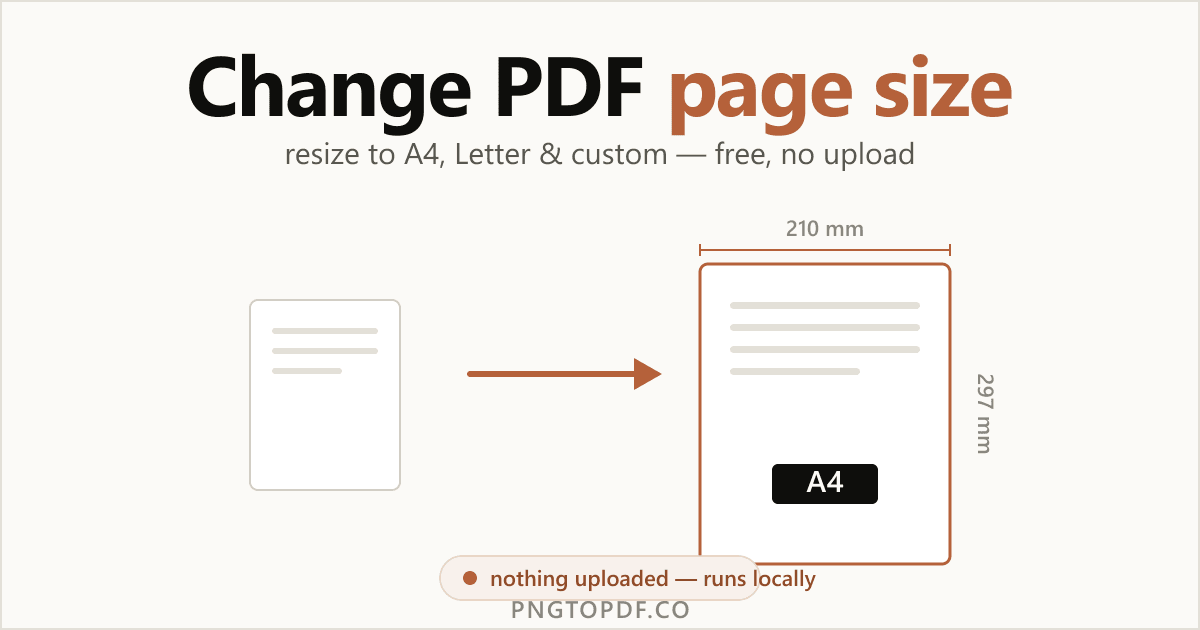
"Resize a PDF" means two completely different things, and mixing them up is the number-one reason people reach for the wrong tool. You can change a PDF's page size — its physical dimensions, like A4 versus Letter — or shrink its file size — the megabytes it takes up. This guide is about the first one: changing the actual page dimensions.
You will learn how to resize any PDF to A4, Letter, or a custom size — free, on any device, and with nothing uploaded — plus the part no other guide explains: how the three content-scaling options (fit, center, and stretch) change what your pages actually look like.
Resize vs compress: which do you actually need?
This is the distinction that trips everyone up. They sound similar but do opposite jobs:
Resizing changes the page's physical dimensions — turning a Letter-sized page into A4, say. Compressing reduces the file's size in megabytes, leaving the layout and dimensions exactly as they were. If your pages print at the wrong size, you want resize. If a file is too big to email, you want compress the PDF instead.
| Your goal | Use | Changes dimensions? | Changes MB? |
|---|---|---|---|
| Fit a paper size / print | Resize | Yes | Usually not |
| Make the file smaller to send | Compress | No | Yes |
Standard PDF page sizes (A4, Letter, Legal & more)
Most resizing is about hitting a standard size. Here are the common ones with exact dimensions:
| Size | Millimeters | Inches | Common use |
|---|---|---|---|
| A4 | 210 × 297 | 8.27 × 11.69 | International standard, business docs |
| Letter | 215.9 × 279.4 | 8.5 × 11 | US, Canada, Mexico standard |
| Legal | 215.9 × 355.6 | 8.5 × 14 | Contracts, legal documents |
| A3 | 297 × 420 | 11.69 × 16.54 | Posters, spreadsheets, plans |
| A5 | 148 × 210 | 5.83 × 8.27 | Booklets, notes, flyers |
A4 vs Letter: the transatlantic difference
A4 and Letter are close but not identical. A4 is narrower and taller (210 × 297 mm); Letter is wider and shorter (215.9 × 279.4 mm). That small gap is why a document from a US client often prints with odd margins or a cut-off line in Europe, and vice versa. Resizing to the local standard fixes it — and the Fit option (below) keeps your content safe in the process.
The easiest way: resize a PDF online (no upload)
The fastest method needs no software and no account. A client-side resizer does everything inside your browser tab, so your document never leaves your computer. Here is how it works with our free PDF resizer:
- 1Open the resizerGo to pngtopdf.co/resize-pdf. Nothing to install, nothing to sign up for.
- 2Add your PDFDrag the file onto the page, or click to browse. It loads instantly and stays on your device.
- 3Choose the target sizePick a preset (A4, Letter, Legal, A3, A5…), type a custom width × height in mm, in, or pt, or scale by percentage.
- 4Choose scaling and downloadSelect fit, center, or stretch, then download. The whole job runs locally in your browser.
Presets, custom dimensions, or percentage
Three ways to set the new size, depending on what you need:
- Presets — one click for standard paper (A4, Letter, Legal, A3, A5, and more).
- Custom dimensions — type an exact width × height in millimeters, inches, or points when you need a specific size.
- Percentage — scale to, say, 50% with the aspect ratio locked, to shrink or grow proportionally without picking a paper size.
Fit vs center vs stretch: how your content scales
This is the step almost every other guide skips — and it decides whether your resized PDF looks right. When the page changes size, the content has to be placed onto it, and there are three ways to do that:
- Fit (the default): scales the content proportionally to fill the new page with no distortion. The right choice for almost every resize.
- Center: keeps the content at its original size, centered on the new page, adding margins around it. Best when you want to standardize margins without rescaling.
- Stretch: forces the content to fill the new page exactly, which can distort it if the proportions differ. Use it only when you truly need edge-to-edge.
How to make all pages the same size (unify)
Ever opened a PDF where one page is portrait, the next is a wide scan, and a third is some odd size? That happens when you combine files from different sources. Resizing fixes it: set one target size — A4, say — and every page conforms to it, so the whole document prints and scrolls consistently. If you only want to standardize some pages, a good resizer lets you apply the change to a page range.
Resize a PDF without an online tool (built-in methods)
Prefer to stay offline? Both Mac and Windows can change a PDF's page size with built-in software, with a couple of limitations worth knowing.
Mac: Preview
- 1Open the PDF in PreviewDouble-click the file; Preview is the default viewer.
- 2Choose File → PrintClick "Show Details" if the dialog is collapsed.
- 3Pick a paper sizeSelect the target size from the Paper Size dropdown; Preview scales the page to fit.
- 4Save as PDFClick the PDF dropdown at the bottom-left and choose "Save as PDF".
Preview is quick for a standard size, but its preset list is short and it always scales to fit — there's no center, stretch, or percentage option.
Windows
Windows has no built-in PDF resizer. The usual workarounds:
- From the source app. If the PDF came from Word, change the page size there (Layout → Size) and re-export to PDF.
- Microsoft Print to PDF. Open the PDF, press Ctrl+P, choose "Microsoft Print to PDF", and set the paper size — though control over scaling is limited.
Is it safe to resize a PDF online?
It depends entirely on the tool. Most online resizers upload your file to a server, process it, and promise to delete it later. A client-side resizer is different: it runs entirely in your browser, so the file is never transmitted — nothing to intercept, nothing cached elsewhere. A quick way to tell them apart: a client-side tool works almost instantly with no "uploading…" bar, and it keeps working with your connection switched off.
| Method | File uploaded? | Works offline? | Signup? |
|---|---|---|---|
| In-browser, local (our tool) | No — stays on device | Yes | No |
| Cloud resizer | Yes | No | Often |
| Mac Preview | No | Yes | No |
Resized for print and now need to email it? You can compress it to email afterwards — also done locally, in your browser.
Frequently asked questions
How do I change a PDF’s page size to A4?
Open a free resizer like pngtopdf.co’s resize tool, add the PDF, choose the A4 preset (210 × 297 mm), pick how the content should scale, and download. It is free, needs no Acrobat, and on a client-side tool the file is never uploaded.
What’s the difference between resizing and compressing a PDF?
Resizing changes the page’s physical dimensions (A4, Letter, custom). Compressing reduces the file’s size in megabytes while keeping the same layout. If pages print at the wrong size, resize; if the file is too big to email, compress.
Does resizing a PDF make the file smaller in MB?
Not necessarily. Page size and file size are independent — scaling pages down can leave the megabytes nearly unchanged, because the images and fonts inside are the same. To shrink the file itself, use a compress tool instead.
Will resizing reduce the quality of my PDF?
Text and vector graphics scale losslessly — they stay crisp at any size. Images are resampled by your viewer when displayed, but the embedded data is preserved, so a resized PDF still prints cleanly at the new dimensions.
What’s the difference between fit, center, and stretch?
Fit scales your content proportionally to fill the new page with no distortion (the usual choice). Center keeps it at original size and adds margins. Stretch forces it to fill exactly, which can distort the content — use it only when you need edge-to-edge.
How do I make all pages in a PDF the same size?
Set a single target size (for example A4) and apply it to every page; mixed-size pages all conform. This is handy for PDFs that combine scans and exports. With pngtopdf.co’s resizer you can also limit it to a page range.
How do I convert a PDF from Letter to A4 (or A4 to Letter)?
Pick the opposite preset and resize. A4 (210 × 297 mm) is narrower and taller than Letter (215.9 × 279.4 mm), so use the Fit option to scale the content safely without cutting anything off at the edges.
Is it safe to resize a PDF online?
It depends on the tool. Most upload your file to a server; a client-side resizer like pngtopdf.co processes everything in your browser, so the document never leaves your device. A quick test: local tools keep working even with your connection switched off.
The bottom line
Changing a PDF's page size is quick and free, and it does not require Acrobat. Remember the key distinction: resizing changes the page's dimensions, while compressing changes the file's megabytes — pick the one that matches your goal. For A4, Letter, or a custom size, the fastest route is a free in-browser resizer that keeps your document on your own device, and the fit/center/stretch choice gives you control no built-in tool offers.
Ready to try it? Resize your PDF now — free, private, and no upload. Need to shrink the file size instead? Use the compress tool.